Enhanced Team Member Experience in Dynamics 365 Project Operations

A Step Forward in Empowering Project Delivery Teams
Since April 2026 update to Dynamics 365 Project Operations, Microsoft keep enhancing the "Enhanced Team Member Experience", a significant usability improvement designed to help project resources better manage their day‑to‑day work. This feature focuses on clarity, personal productivity, and streamlined time entry for team members working across multiple projects.
For project‑centric organizations, this enhancement addresses a long‑standing challenge: enabling consultants and project resources to easily understand what they are staffed on, what they need to work on this week, and how to log time efficiently, all from a single, role‑focused experience.
(To me this echoes plainly the "plan the work and work the plan" approach. Obvious but rarely actual)
This article explains what the Enhanced Team Member Experience is, how it is configured and activated, and the business value it delivers.
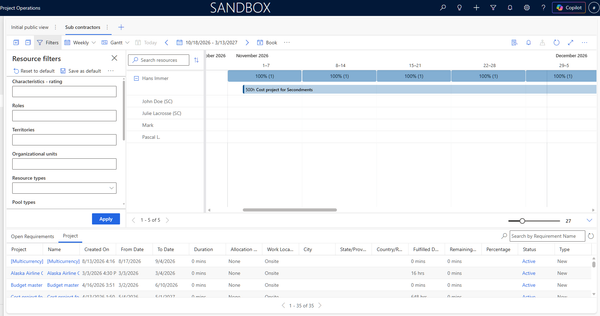
Later in the year (in July), the capability has been expanded to view time phased task assignment (see some details about that in the section below).
What Is the Enhanced Team Member Experience?
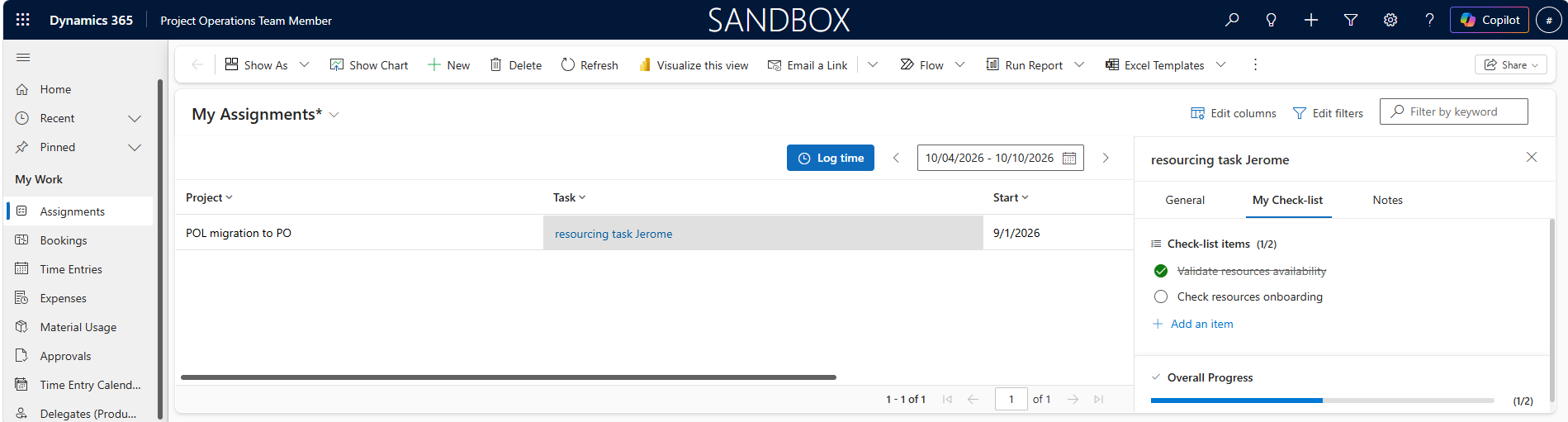
The Enhanced Team Member Experience is a modernized user experience within the Project Operations Team Member app, designed specifically for project resources. It provides a consolidated, week‑based view of:
- Projects a team member is staffed on
- Project tasks they are assigned to
- Personal task checklists and notes
- Streamlined weekly time entry
The experience helps team members focus on execution rather than navigation by organizing work around “what I’m working on this week” instead of traditional project or task hierarchies.
Key capabilities include:
- Projects view showing active project memberships by week
- Assignments view listing project tasks assigned to the user
- Personal checklists and notes for tasks (private to the team member)
- Improved weekly time entry flow, reducing friction when submitting time
Microsoft positions this capability as part of its ongoing investment in employee and team member usability within Project Operations, particularly for organizations with matrix staffing and multi‑project delivery models.
How Is the Feature Configured and Activated?
The Enhanced Team Member Experience is not enabled by default and must be explicitly activated by an administrator.
Prerequisites
- The Project Operations environment must be updated to version 4.166.0.x or later
- Applies to:
- Project Operations Core
- Project Operations Integrated with ERP
Earlier versions do not support this feature.
Activation Steps
Activation is performed at the App parameter level:
- Sign in to Dynamics 365 Project Operations as a System Administrator
- Navigate to Settings
- Open Parameters
- Open Feature Control
- Enable Enhanced Team Member experience
- Save the configuration
Once enabled, two new navigation items—Projects and Assignments—appear under My Work in the Project Operations Team Member app.
Configuration and Extensibility Considerations
- The Projects grid is configurable using Power Apps, allowing organizations to tailor visible fields by modifying the My Projects view on the Team Member table
- The experience leverages standard staffing and task assignment data—no additional project setup is required
- Personal checklists and notes are private to the user and do not impact project governance or scheduling
No gaps or functional limitations are documented by Microsoft at this time. Organizations with custom team member apps should, however, validate coexistence during rollout.
What Is the Business Value?
The Enhanced Team Member Experience delivers value across adoption, efficiency, and data quality.
1. Improved Team Member Adoption
Project resources often interact with Project Operations primarily for time entry. By presenting staffing, tasks, and time in a single, role‑focused experience, the feature reduces cognitive load and improves user satisfaction—especially for consultants assigned to multiple concurrent projects.
2. Increased Accuracy and Timeliness of Time Entry
By tying time entry directly to visible weekly assignments and tasks, the experience:
- Reduces missed or late time submissions
- Improves accuracy by making assignments explicit
- Lowers administrative follow‑up effort for project managers
This directly impacts project financials, forecasting, and revenue recognition, particularly in time‑and‑materials delivery models.
3. Personal Productivity Without Governance Impact
The ability for team members to maintain private checklists and notes allows individuals to manage their work in a way that suits them, without altering project plans, schedules, or task structures. This strikes a balance between personal productivity and central project control.
4. Alignment with Microsoft’s Modern UX Direction
This feature aligns with Microsoft’s broader investment in modern, persona‑based experiences across Project Operations in the 2026 release wave, reinforcing a long‑term shift toward usability and performance improvements for delivery teams.
5. Project tasks that the team member is assigned to
You can view a list of project tasks that you're assigned to during the displayed week. You can also go to other weeks to keep track of completed or upcoming task assignments.
To track of project tasks that you're assigned to, follow these steps:
- Go to the Project Operations Team Member app.
- Select the Assignments menu item under My Work.
To view your time-phased task assignments, follow these steps:
- Go to the Project Operations Team Member app.
- Select the Assignments menu item under My Work. Switch from My Bookings view to My Time Phased Assignments.
- Select Daily, Weekly, or Monthly to change the time horizon (set to Weekly by default). The selected horizon determines how your assignments are grouped and shows the total hours you're staffed on for that period.
- The time icon allows team members to show or hide assigned hours for each time slice as well.

View time-phased task assignments, next steps
- Enable the feature in a sandbox and validate with a pilot group of project resources
- Review and tailor the Projects view using Power Apps to surface the most relevant fields
- Update internal training materials to reflect the new Team Member navigation
- Communicate the change as a usability enhancement rather than a process change to drive adoption
No hard deadlines are imposed by Microsoft; however, activation is recommended once the April 2026 updates are available in your environment.
Streamline logging of weekly time entries
Before the enhanced team member experience, users started their time entry process from a blank grid without context of projects or tasks that they worked on for that week. Now, team members can use their staffed projects or assigned tasks as the reference for logging time entries.
To log time entries, follow these steps:
- Go to the Project Operations Team Member app.
- Select Assignments under My Work. Select the week you want to log time entries for.
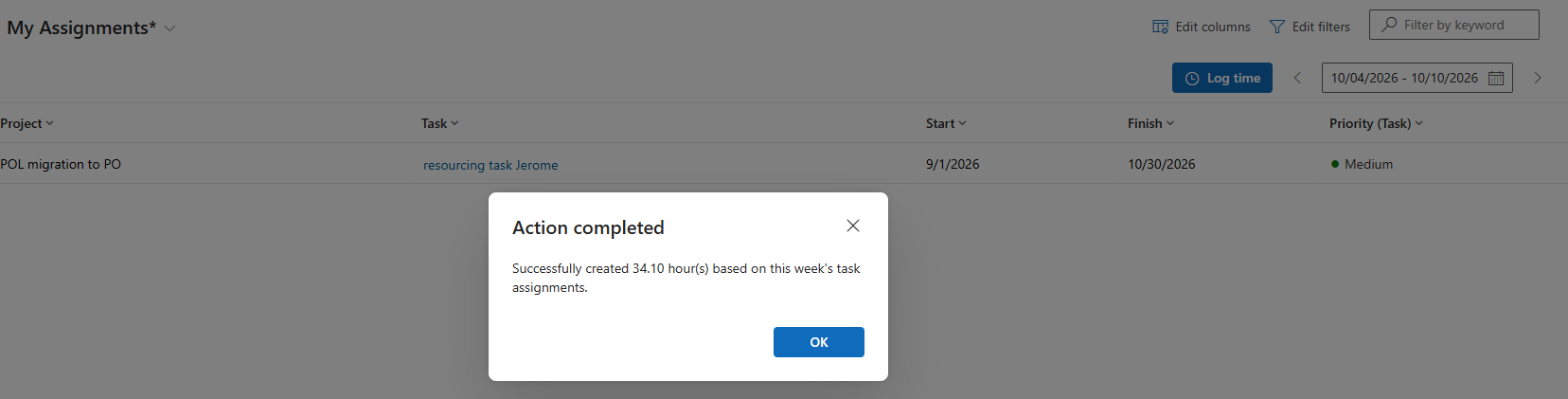
- Select Log time. The system creates draft time entries for the selected week, based on Task Assignment hours for that week. A dialog appears with confirmation of time entry creation along with the number of hours logged.
- Go to Time Entries and select the corresponding week to review the created entries before submitting for approval.
- Similarly, select Projects under My Work. Select the week you want to log time entries for.
- Select Log time. The system creates draft time entries for the selected week, based on Booked Project capacity for that week. A dialog appears with confirmation of time entry creation along with the number of hours logged.
- Go to Time Entries and select the corresponding week to review the created entries before submitting for approval.
Final Thought
The Enhanced Team Member Experience is not a radical functional change—but it is a meaningful one. By improving how team members see, organize, and act on their work, Microsoft is addressing one of the most critical success factors in project delivery: engaged, informed, and efficient people.