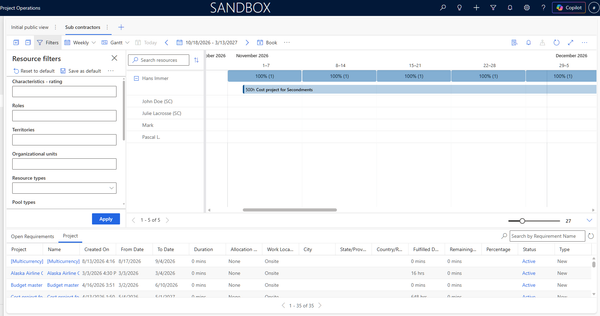
Understanding the resource fulfilment process #1
This series of article covers the entire resource fulfilment lifecycle:
Resource Requirement → Resource Request → Booking → Direct Fulfilment → Multiple Resource Fulfilment → Assignment Distribution → Resource Reconciliation → Resource Request Completion
and provides practical guidance for both Project Managers and Resource Managers operating Dynamics 365 Project Operations.
Resource fulfillment is a core business process within D365 Project Operations. At its heart, it is about bridging the gap between project demand and available capacity.
During the project planning stage, one of the main challenges for project managers and resource managers is resource allocation — they must determine and reserve the correct resource to work on a project.The ability to find the right resources at the right time, book those resources on projects, and keep them utilized helps the organisation meet revenue targets and customer satisfaction goals.Project Operations supports two resource management modes: Centralized Mode, where fulfillment of resource requirements is delegated to a Resource Manager, and Hybrid Mode, where both Resource Managers and Project Managers can book resources using various methods. [learn.microsoft.com] [community....namics.com] [community....namics.com]
Regardless of mode, the process typically follows this flow:
- A generic resource is added to the project team and assigned to tasks
- A resource requirement is generated from that generic team member
- A named resource is booked against that requirement via the Schedule Board or Schedule Assistant
- The booking is confirmed and aligned with project assignments
Regardless of whether your organisation operates in Centralized mode or Hybrid mode, Project Operations provides four booking statuses: Hard, Soft, Proposed, and Canceled. [learn.microsoft.com]
Understanding the nuances of each step — and the pitfalls to avoid — is critical to a clean and efficient fulfillment process. Below are three key areas of practitioner guidance.
✅ Tip #1 — Resource Requirement: Fill It In Properly
"Garbage in, garbage out." A poorly filled requirement leads to poor resource matching and lost context.
The resource requirement is the central artefact driving fulfillment. It must carry as much meaningful information as possible to enable the right resource match.
The prerequisite and usual suspect: good clean master data on the bookable resources. You can refer to this post if it helps.
What to fill in
- Duration — This is expressed in periods of 24 hours per day (not 8h/day and not calendar-based). Be conscious of this when interpreting or entering values.
- Preferred Resources — Indicate preferred named resources where known to guide the Resource Manager.
- Roles — Always specify the role required. Roles facilitate broad grouping of bookable resources by type (e.g., technician, supervisor, subcontractor) and can be defined at the project task level to allow a resource to fulfil multiple roles within a project. [community....namics.com]
- Skills & Characteristics — Characteristics are used to enrich the attributes describing the abilities of a resource. Skills enable a project and a resource manager to find resources for a project. [community....namics.com]
- Description — Use the description field to add free-text context about the specific need.
What the requirement does NOT do — know the boundaries
- ❌ There is no automation for cancelling or escalating a requirement
- ❌ There is no approval workflow built into the requirement itself
- ❌ The requirement carries no information about resource costing
Useful associated items
Two associated items are worth monitoring alongside the requirement:
- Bookings — Bookings are the hard or soft allocation of resources to a project. They are a project-level concept. [community....namics.com]
- Resource Request — Visible from the requirement, it supports the centralized mode fulfillment flow and provides a structured communication channel between the Project Manager and Resource Manager.
✅ Tip #2 — Schedule Board: Filters, URS Parameters & the Duration/Interval Trap
"If resources are not showing up, the configuration is hiding them."
The Schedule Board is the primary fulfillment tool. However, its default settings and filter parameters can silently block resources from appearing — a very common and frustrating pitfall.
URS Settings & Scheduling Scope
Universal Resource Scheduling (URS) empowers businesses to efficiently assign resources — people, equipment, or spaces — to tasks and bookings. The Schedule Board is your control centre for smart resource planning.
URS parameters must be reviewed and configured as part of a project implementation. The Resource Scheduling Scope defines which resources are visible and which requirements are considered. This is set at the URS app level — not within Project Operations directly.
🔑 The Duration Filter Pitfall
This is one of the most common silent blockers:
- The Available Duration filter on the Schedule Board corresponds to the requirement duration — it filters resources to only those who have at least that much availability in a single contiguous block.
- For long-term projects or when resources are partially booked and unavailable for contiguous blocks, keeping the duration at its default (the full requirement duration) will filter out most resources, making them appear as unavailable even when they are not.
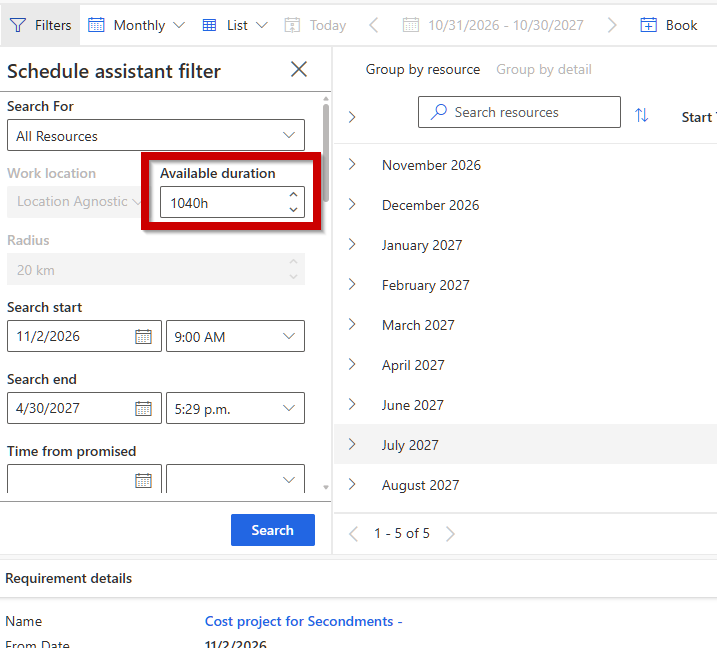
💡 Recommendation: Set the Duration filter to its minimum value (1 minute). This ensures all resources appear and availability can be assessed visually on the board.
🔑 The Interval Parameter
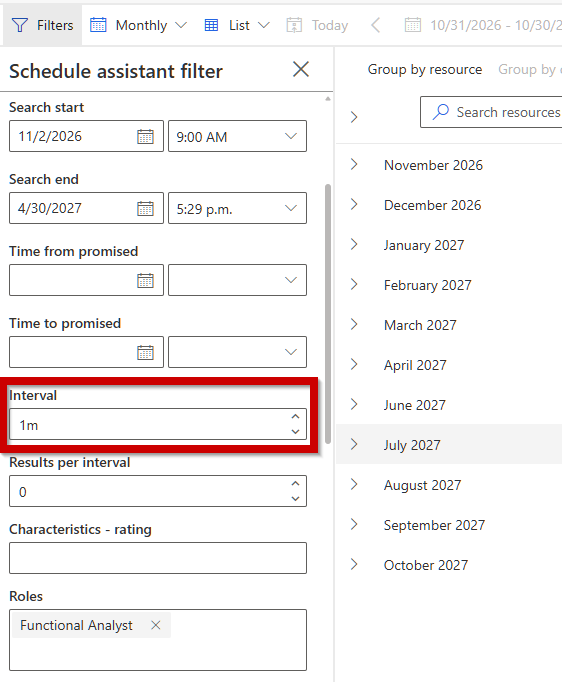
- The Interval parameter controls the spacing between booking blocks when searching availability.
- It should be set to its minimum value to ensure granular availability resolution.
- This is typically configured at the URS default parameters level — and is often overlooked during initial setup.
Schedule Board Filter Best Practices
Custom filters streamline the dispatcher's job by narrowing resource options. You can define filters bound to fields such as resource type, skill, territory, or custom flags.
- Always save filter configurations per tab — do not rely on ad-hoc filter adjustments
- Align filter defaults to the scheduling policy agreed upon with the client
- Validate resource configuration completeness (calendars, roles, skills, org units) before trusting what the Schedule Board shows — all resource configuration pitfalls surface here
⚠️ A clean scheduling policy and governance process is not optional. Without it, the board becomes unreliable and resource decisions become inconsistent.
✅ Tip #3 — Booking Statuses: Understanding and Transitioning Hard, Soft & Proposed
"The booking status is not cosmetic — it drives capacity consumption and project team membership."
You most often establish booking statuses in three ways: booking from the Team member grid, booking from the Schedule Board or Schedule Assistant, or booking from the Project page. [learn.microsoft.com]
The Three Active Statuses Explained
|
Status |
Capacity Consumed? |
On Project Team? |
Use Case |
|
Hard |
✅ Yes |
✅ Yes |
Firm allocation |
|
Soft |
❌ No |
✅ Yes |
Tentative / pending confirmation |
|
Proposed |
❌ No |
❌ No |
Resource Manager proposal pending PM acceptance |
Hard booking is used when a resource manager or project manager wants to firmly allocate and reserve a resource to a project — the resource's capacity is consumed. Soft booking is used when you must reserve a resource but want that resource to remain allocable to other projects until a final decision is made. Proposed booking is used in Centralized mode when a resource manager proposes a resource — until a final decision is made, the resource's capacity isn't consumed, and the proposed resource isn't added to the project team. [community....namics.com] [learn.microsoft.com]
How to Transition Between Statuses
You can update booking statuses in three places: in the Schedule Board by right-clicking a specific booking, in the Team member grid using the Maintain Bookings option, and through the Resource request cycle process. [learn.microsoft.com]
Key transitions to know and use in practice:
- Schedule Board → Right-click any booking block to change status (e.g., Soft → Hard, Proposed → Hard)
- Resource Requirement → Can be used to switch a Proposed booking to Hard, confirming the resource manager's proposal
- Project Team Tab → A resource that is Soft booked on a project can be confirmed and Hard booked directly from the team tab without going back to the Schedule Board
Status Transition Reference
Key status transitions and their impacts include:
- Proposed → Hard: The resource is added to the project's Team member grid, and resource capacity is consumed.
- Soft → Hard: Resource capacity is consumed, confirming a previously tentative booking.
- Hard → Canceled: Resource capacity is freed.
- Soft → Canceled: No capacity impact. [learn.microsoft.com]
💡 Recommended Action: Establish a clear team convention on when to use Soft vs. Hard vs. Proposed — and enforce transitions at defined project milestones (e.g., project kick-off confirmation = move all Soft to Hard).
📌 Summary Checklist
|
Area |
Key Action |
|
Resource Requirement |
Fill in duration (24h periods), role, skills, preferred resource, description |
|
Requirement Boundaries |
No escalation automation, no approval, no costing — manage expectations |
|
Associated Items |
Monitor bookings & resource request alongside the requirement |
|
Schedule Board Duration |
Set to 1 minute minimum when resources are not showing up |
|
Schedule Board Interval |
Set to minimum in URS default parameters |
|
Booking Statuses |
Use Hard/Soft/Proposed intentionally — know where to trigger each transition |
|
Governance |
Define a scheduling policy before go-live — the board reflects what you configure |
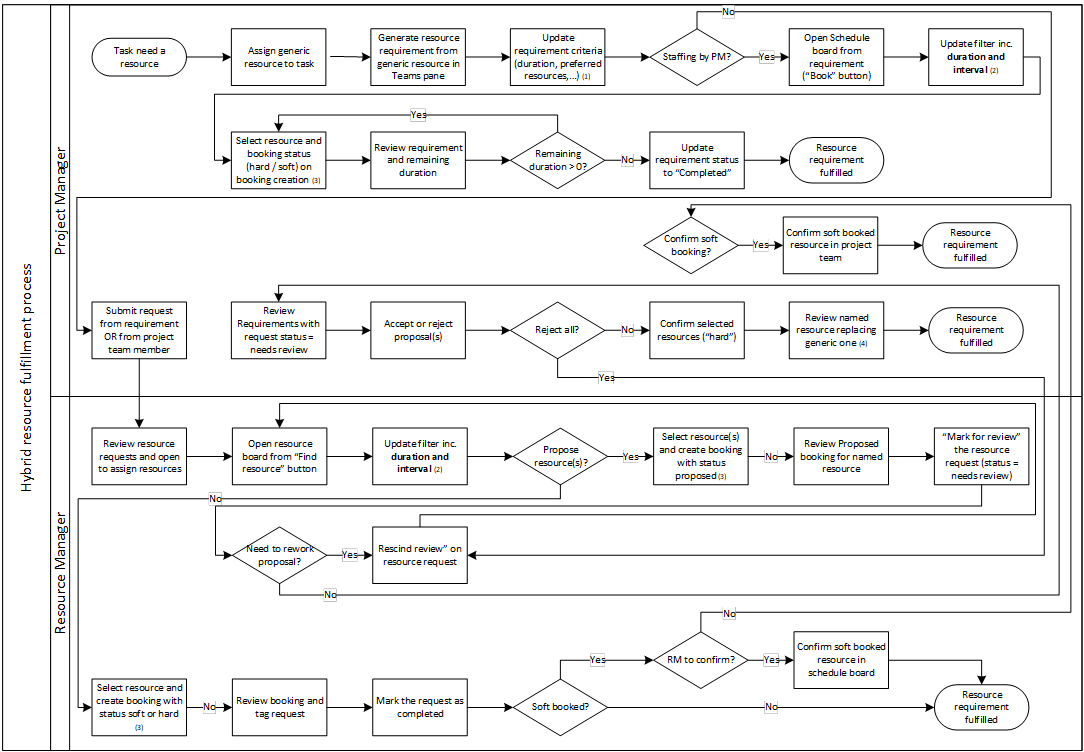
(1) Update requirement criteria: duration is in periods of 24h per day, not 8h/day or based on calendar, preferred resources, roles, descriptions, so that a maximum of information is passed. There is no automation on cancelling or escalating a requirement, no approval workflow and no information from it about resource costing. Associated items are useful: bookings and resource request.
(2) Schedule Board filters and default parameters are important to consider. The URS settings should be consider in the URS app as part of a project which includes the resource scheduling scope. Update filter include duration and interval: duration is the requirement duration. For long term project or when resources are busy and need to be partially booked, keeping the duration at maximum is filtering out resources. Set it to the minimum value (1 minute) in order to have resources showing up. All the tips and pitfalls from resource configuration are important to consider here. A clean scheduling policy and process is important to secure. "Interval" is the interval between booking blocks. It should be minimal and considered as defaulted in URS parameters.
(3) The schedule board booking status is used to create the booking transaction’s status: hard, soft or proposed. The bookings can be handled from the schedule board to update them from soft to hard or proposed to hard. The same way, the resource requirement can switch a proposed booking to hard and a soft booked resource on a project can be confirmed and hard booked from the project team tab.
(4) When one named resource is booked against a resource requirement, the logic is easy to have this resource replacing the generic resource in the project team and assign the resource in question to all the task the generic resource was assigned to.
Now when multiple name resources are selected for booking, Project Operations do not have a clear logic to dispatch the generic resource tasks on them especially when one task requires multiple resources. Hence the logic is to create the named resources in the project team and leave all tasks assigned to the generic resource. The named resources have to be assigned to tasks manually afterward.
(5) Resource requirement's “request status” is key to monitor resource requirements progress but is populated only when a resource request is submitted to the Resource Manager. When not, the resource requirement state can be deducted from the remaining duration field: if >0, then it is open and must be completed. Else it is completed.
(6) The resource request own status is not automatically completed nor marked with “needs review” and the status update is deliberately manual. Similarly, the implementation projects must delve into that process early and being prepared ahead of time for the process demo with a personalized view on the resource request which has very limited associations with other data. A personalization might be considered to offer association with resulting booking transactions as it does not exist yet in the standard app. The resource requirement offers the required relationship to both bookings and resource requests.